Everything you need to get started with Voltuno — from your first project to an inspection-ready single-line diagram. Use the table of contents to jump straight to the topic you need.
Voltuno is a browser-based drawing tool that lets electricians and homeowners quickly and easily draw the single-line diagram and site plan of an electrical installation.
Because Voltuno runs entirely in the browser, no installation is required. You open the editor in a modern browser and you are ready to go. When you are signed in, your projects are saved to the cloud automatically, so you can keep working from anywhere.
All symbols follow the AREI (RGIE) standards, so your diagram is ready for inspection. Voltuno works smoothly on desktop, laptop and tablet.
2. Getting started
You can start drawing a diagram in the editor without an account. This lets you try Voltuno before creating anything.
To export or save your diagram, you need an account. When you create a diagram and then try to export it, Voltuno asks you to sign in or create an account. Your project is then linked to your account, persisted and available in your dashboard.
How the editor is laid out
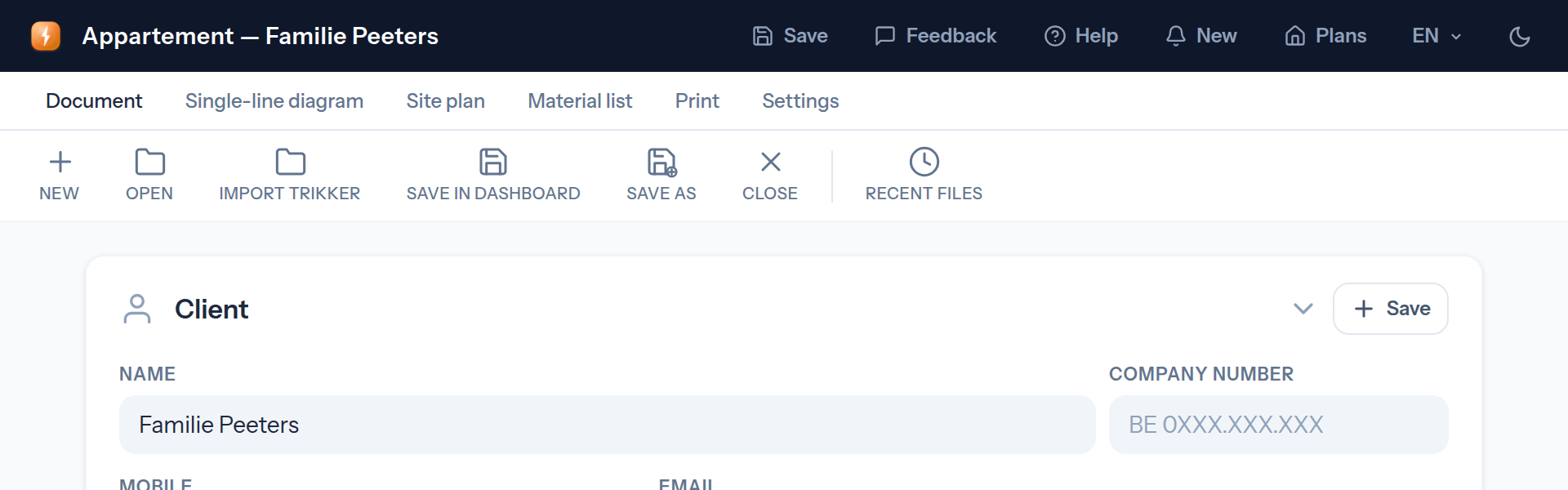
At the top you'll find the tabs that guide you through your project. Each tab shows a different part of your installation:
Document — the administrative and project details
Single-line diagram — the diagram of your entire installation
Site plan — the floor plan with the placement of your devices
Material list — the automatically generated bill of materials
Printing — exporting and printing your documents
Settings — shortcuts, appearance and preferences
On the left is the component library from which you drag symbols onto the canvas; in the middle you draw on the canvas.
3. Importing Trikker files
Already have a plan in Trikker? You can open that file in Voltuno. This is called importing. You do not have to draw everything again.
You need Lifetime or an active monthly subscription. Importing is not included in the free plan.
Step 1: Find your Trikker file
Find the file on your computer. Its name ends in .trik, for example house.trik. Use the original Trikker file, not a PDF or photo. The file must be no larger than 5 MB.
Step 2: Open Document
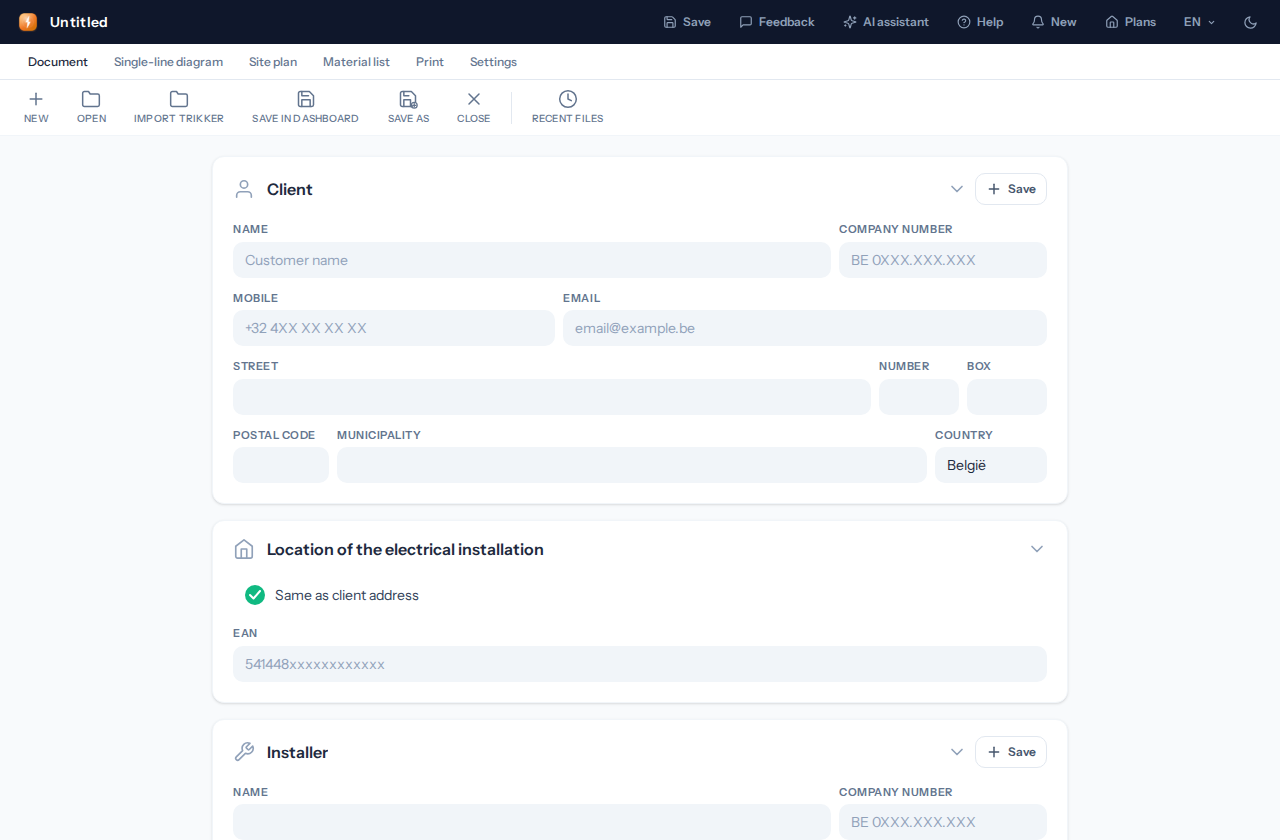
Log in to Voltuno and open the editor. Already working on a plan? Save it first. Then click Document at the top. You will find the Import Trikker button there.
Click Document, then Import Trikker.
Step 3: Choose your file
Click Import Trikker. Find your .trik file in the window that opens. Click the file, then Open. Wait until Voltuno is ready. Your original Trikker file stays the same.
Does Voltuno ask you to discard changes? Click Cancel if you still want to keep them. Save your plan and try again.
Step 4: Check your plan
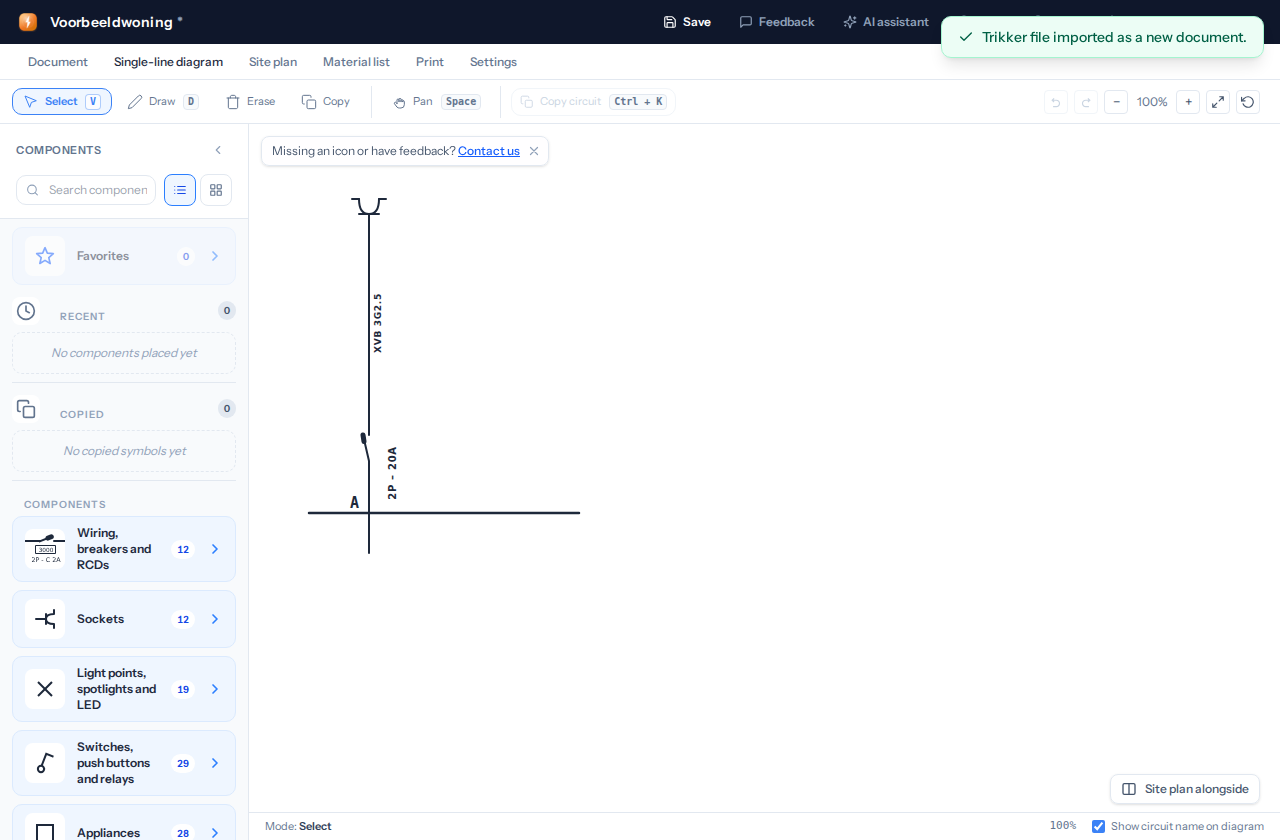
Click Single-line diagram to see your drawing. Also check Document and Site plan. Check the details, symbols and lines. Is anything missing? Add it in Voltuno.
Your drawing is now in Voltuno. Check everything before you keep working.
Do you see a yellow box called Import warnings in Document? Read the messages. Sometimes Voltuno cannot copy a symbol or a setting. A symbol may be missing or appear as a box with a name. Check that part of your plan carefully.
Step 5: Save your plan
Go back to Document and click Save in dashboard. You can then find it in Plans. Use the pencil next to your plan to change its name. Want a file on your computer too? Click Save as. This gives you a Voltuno file, not a new Trikker file.
Need help?
Cannot see Import Trikker? Check that you are logged in to an account with Lifetime or an active monthly subscription.
See an error message? Check that you chose the original .trik file and that it is no larger than 5 MB. Voltuno cannot read every file yet.
Before printing, check the preview in Print too. This shows what will go on paper.
4. Teams and working together
A team is a group of people who work on plans together. Think of one sheet of paper you can both draw on. You both see the same plan.
Teams and live collaboration are only available with an active €12/month subscription. Your colleague needs this subscription too. The Free and Lifetime plans do not include Teams.
Step 1: Create a team
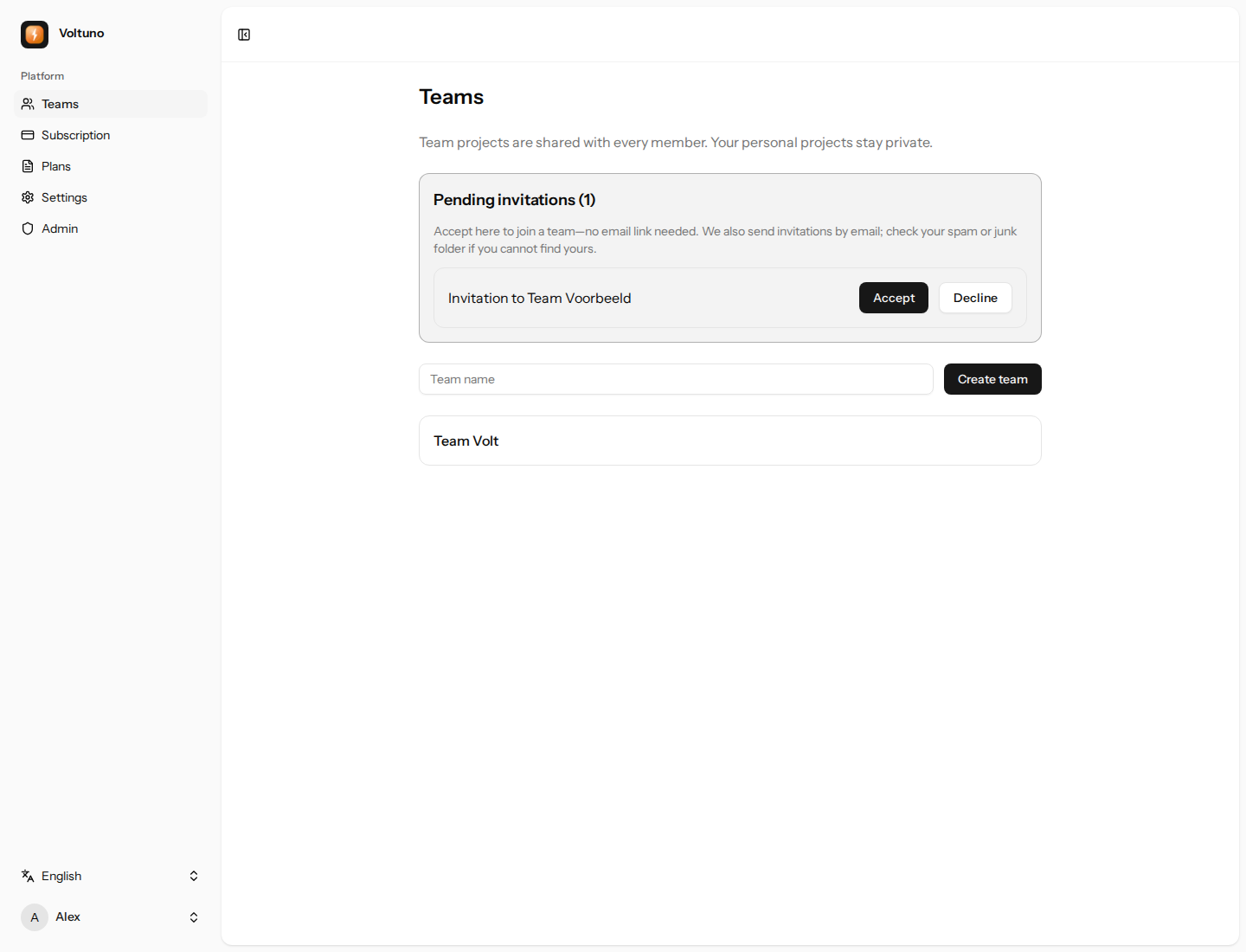
Sign in and click Teams on the left. Enter a name in Team name, such as Team Volt. Click Create team. Your team is ready.
Example: Create team makes a team. Accept lets you join a team you have been invited to.
Step 2: Invite someone
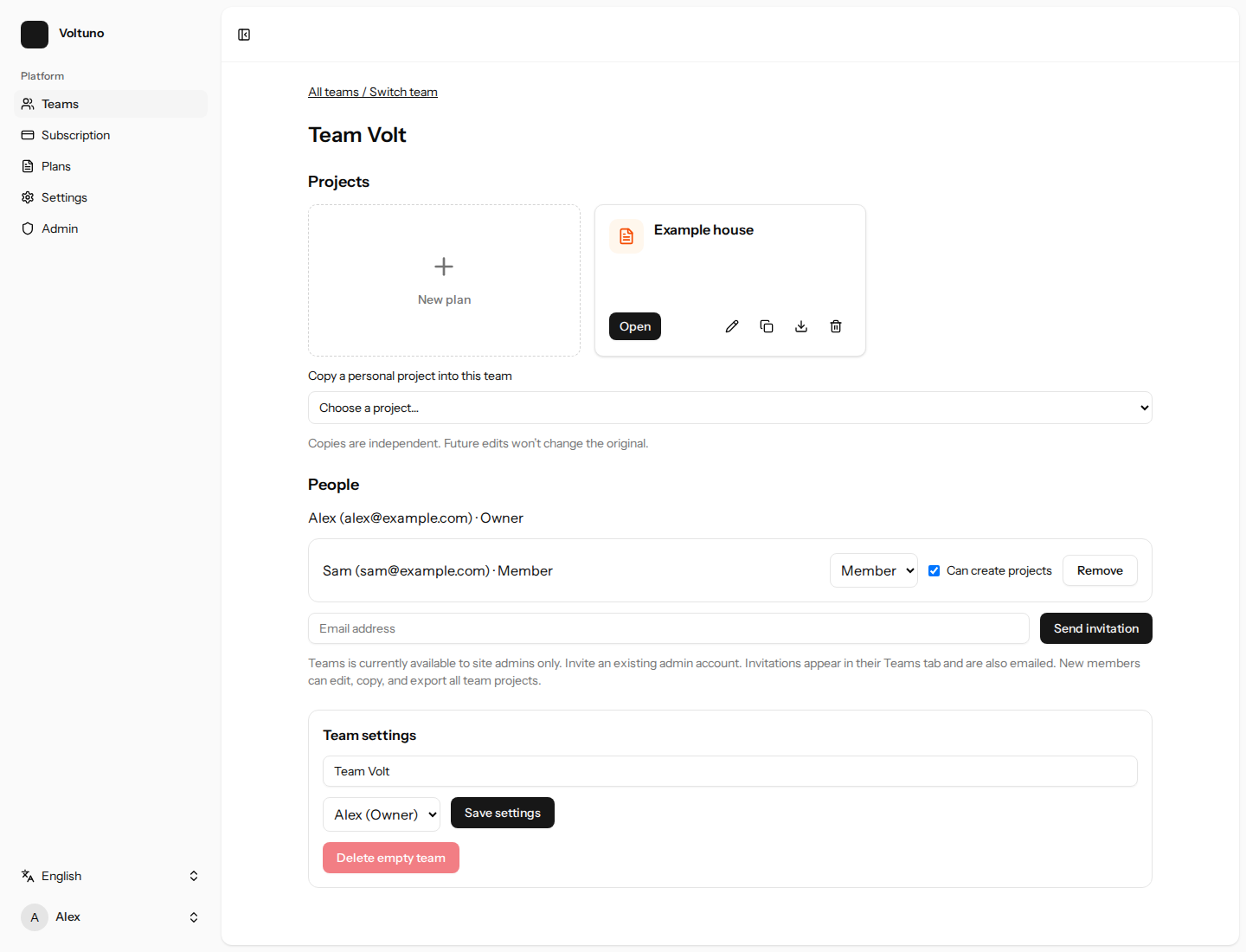
Open your team. Under People, enter your colleague’s email address. Use the address of an existing Voltuno account with access to Teams. Click Send invitation.
Step 3: Ask your colleague to join
Your colleague signs in with the invited account and opens Teams. Under Pending invitations, they click Accept. You are now in the same team. An invitation also arrives by email. Cannot find it? Check the spam folder, or simply accept it in Teams.
Step 4: Open the same plan
Create a new plan under Projects. Or choose one of your own plans under Copy a personal project. Then you and your colleague both open the same plan from the team.
Example: shared plans are at the top. Under People, you can see your teammates and invite someone.
Step 5: Draw together
Start drawing. Your colleague sees your changes appear automatically. You also see their changes. You do not need to send each other a file. Changes are saved automatically.
Good to know
Everyone in your team can view, edit, copy and export all team plans. Your personal plans stay private.
A copy is a separate plan. Changing the team plan does not change your personal original.
Cannot create a new team plan? Ask the team owner or admin to turn on Can create projects for you.
Live team project at the top of the editor shows that you are working together. Undo my change undoes your own change. Sometimes it cannot do this because someone else has already changed that item.
Is your colleague editing the same item? Wait a moment and try again. Lost your internet connection? Voltuno pauses editing until it can load the latest plan.
5. Sharing with a link
Sharing with a link is included in Lifetime (€20 once) and the monthly subscription (€12 per month).
Want to show your plan to a client or colleague? Make a sharing link. They click the link to view your plan. They cannot change it. Want to draw together? Use Teams instead.
Step 1: Open your plan
Go to Plans and open your plan. Click Delen (Share) at the top of the editor.
Step 2: Make a link
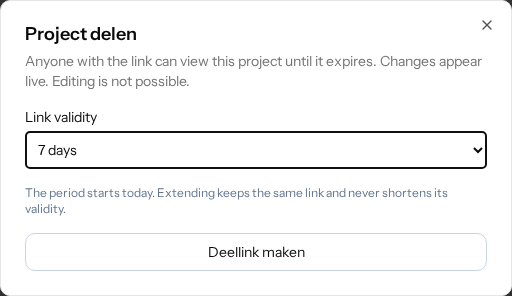
Choose how long the link should work: 7 days, 1 month or 1 year. Click Deellink maken (Create sharing link). Voltuno saves your plan first.
Choose how long your link works, then click Deellink maken (Create sharing link).
Step 3: Send the link
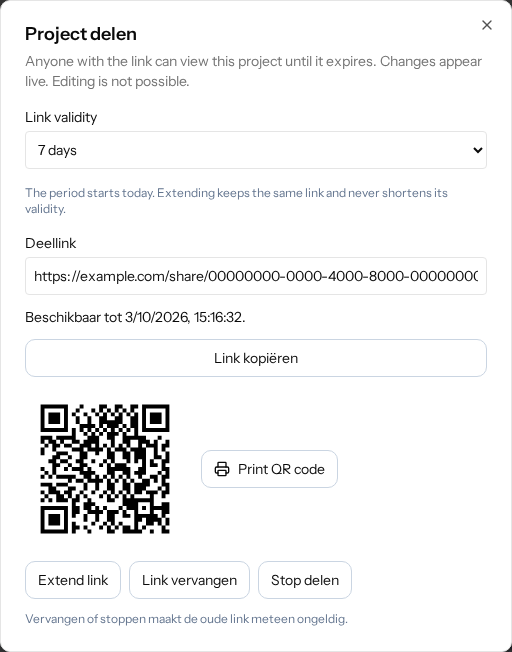
Click Link kopiëren (Copy link). Paste the link into an email or chat message and send it to your client or colleague. You do not need to attach a file.
This is an example link. In your own plan, copy the link Voltuno makes for you.
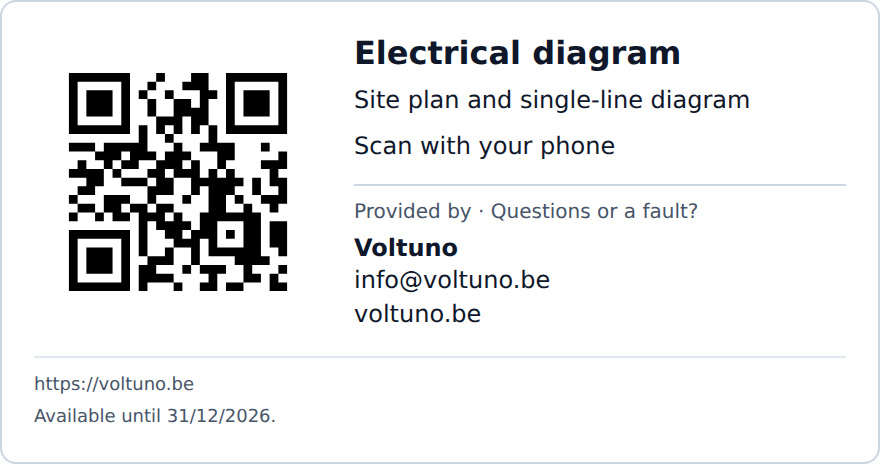
Want to share on paper? The QR card preview appears below the sharing link. Enable Include company or personal details to add your name or company, phone number, email and website. Leave any fields you do not need empty.
Click Use installer details from Document to fill in the installer’s name, phone number and email. For a self-installed installation, Voltuno uses the client’s details. You can still edit these fields. Your contact settings stay with the project.
Example card with Voltuno’s contact details. This example QR code opens voltuno.be. Your project’s card opens its sharing link and shows its expiry date.
Check Card preview as you type. Click Print QR code to print the same card, including the sharing link and expiry date. Leave it with the installation. Scanning your project’s QR code opens the same view-only sharing link.
Step 4: They view your plan
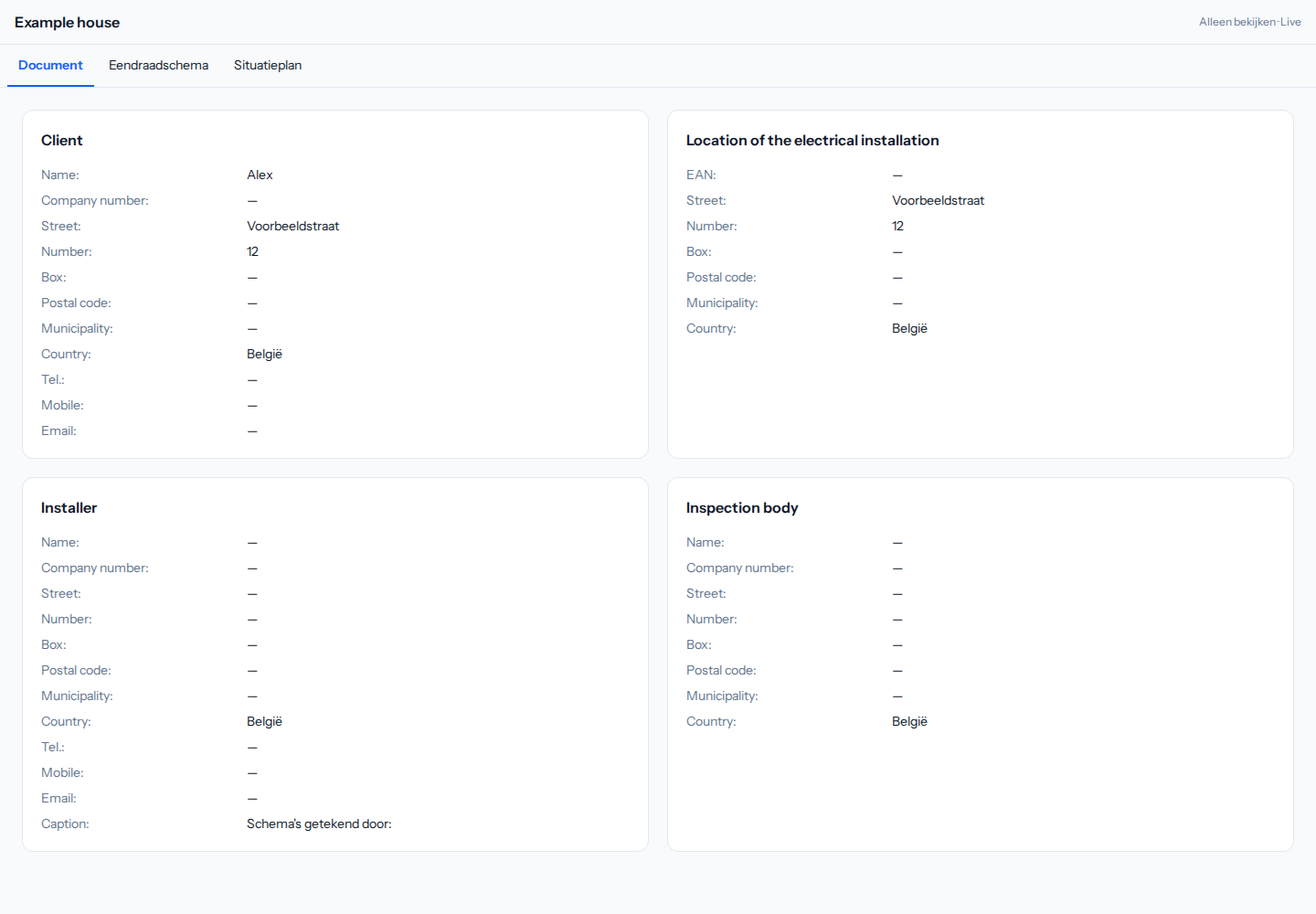
The recipient opens the link in a browser. They do not need an account. The Document, Eendraadschema (Single-line diagram) and Situatieplan (Site plan) tabs let them choose what to view. They can look, but cannot change anything.
This is what the recipient sees: a view of your plan without editing buttons.
Save your changes. Recipients refresh the page to see the latest saved version. You do not need to keep the editor open. The link works until it expires or you stop sharing.
Step 5: Extend or stop the link
Open Delen (Share) again when you want to change the link.
Extend link — choose a new duration first. Then click Extend link. The same link keeps working, so you do not need to send it again. The expiry date never moves earlier.
Link vervangen (Replace link) — makes a new link. The old one stops working immediately. Send the new link to the people who may view your plan.
Stop delen (Stop sharing) — stops access immediately. The link and QR code no longer work. Your own plan stays saved.
Good to know
Anyone who gets the link can view the plan and document details. Only send it to people who may see them.
Has the link expired? Open Delen (Share) and make a new link.
Cannot see Delen (Share)? Sharing is not available for your account or this plan. For a team plan, the team owner manages the sharing link.
6. Subscriptions
Under Subscription you can see which package is active and which features it includes. You can also upgrade there when you need more projects or extra features.
Free plan — create one plan and export without a watermark
Paid plans — save more plans and use extra features
View or change your active package from your dashboard
7. Managing projects
From your projects overview you manage all your installations. You create a new project, rename it, open an existing one or delete one.
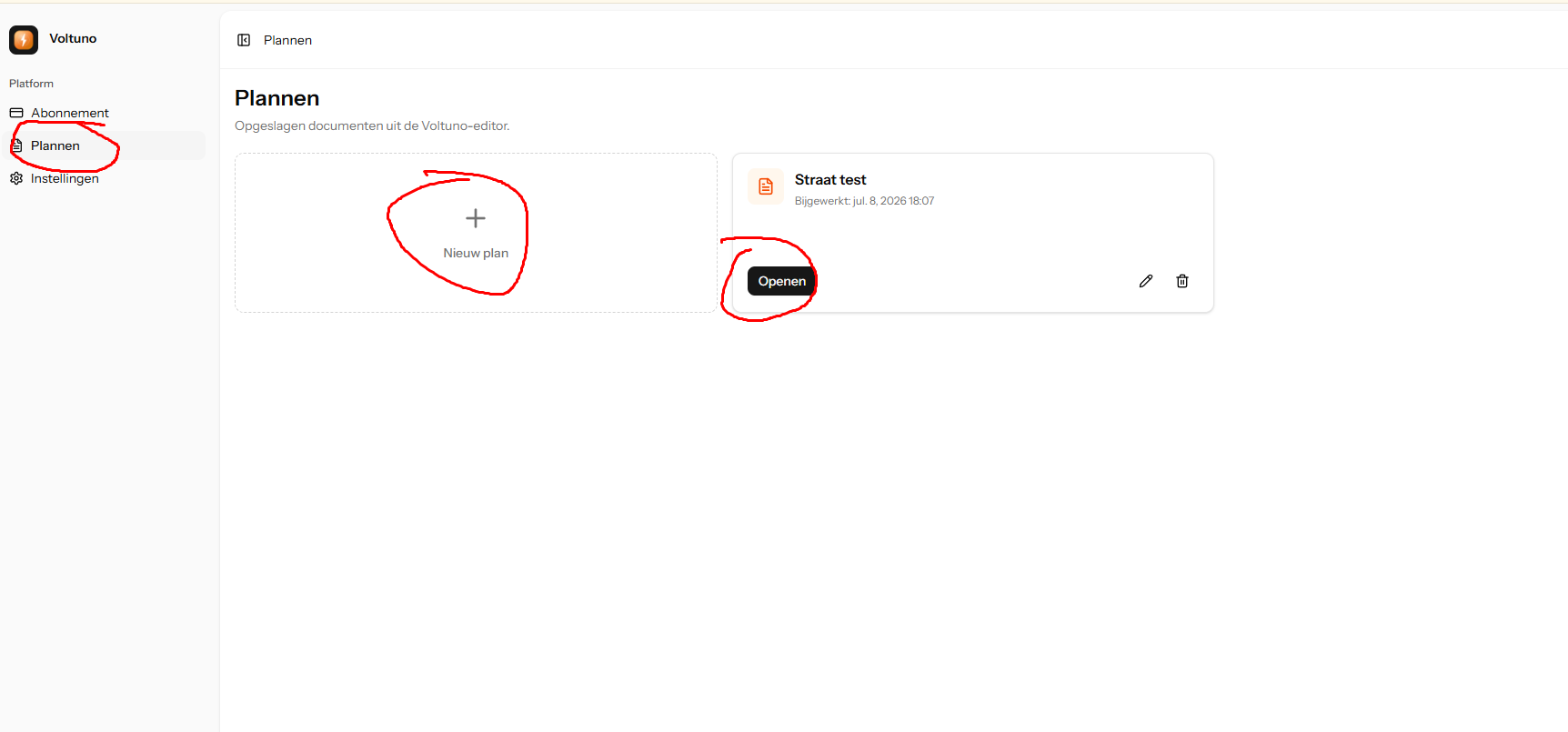
In Plans, create a new plan with New plan. Open existing plans with Open; use the icons to rename or delete a plan.
Start a new project and begin drawing right away
Create more projects as soon as your package allows it
Open existing projects and finish them off
Download projects to keep them locally
Automatic saving: your work is stored while you draw
On the free plan you work with one plan and can export without a watermark. Larger packages unlock more plans and extra features.
8. Working offline
No internet on site? Prepare your project first. Then keep working in the same browser on the same device.
1. At home: prepare your project
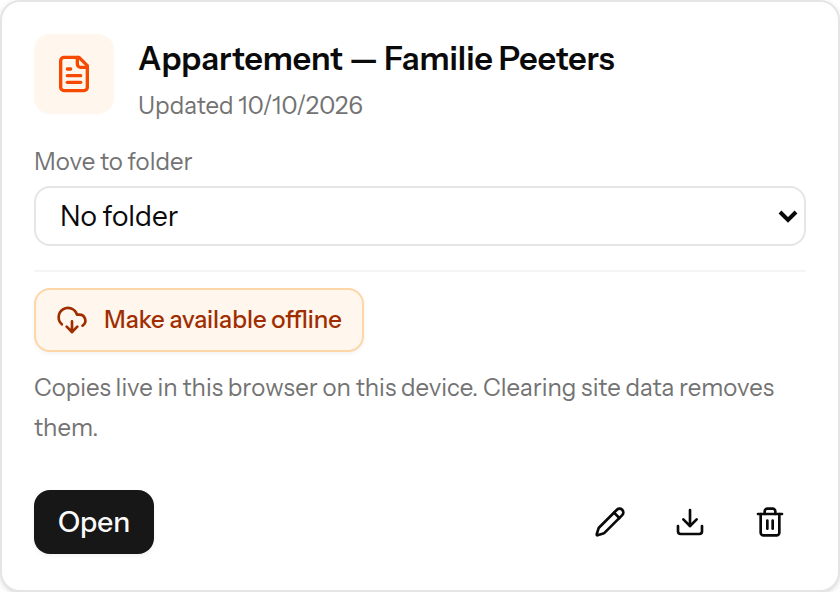
Save your personal project online. Then open Plans (/plans) and click Make available offline on that project. Wait for Available offline on this device.
In Plans, click Make available offline on your project while you still have internet.
2. On site: open your project
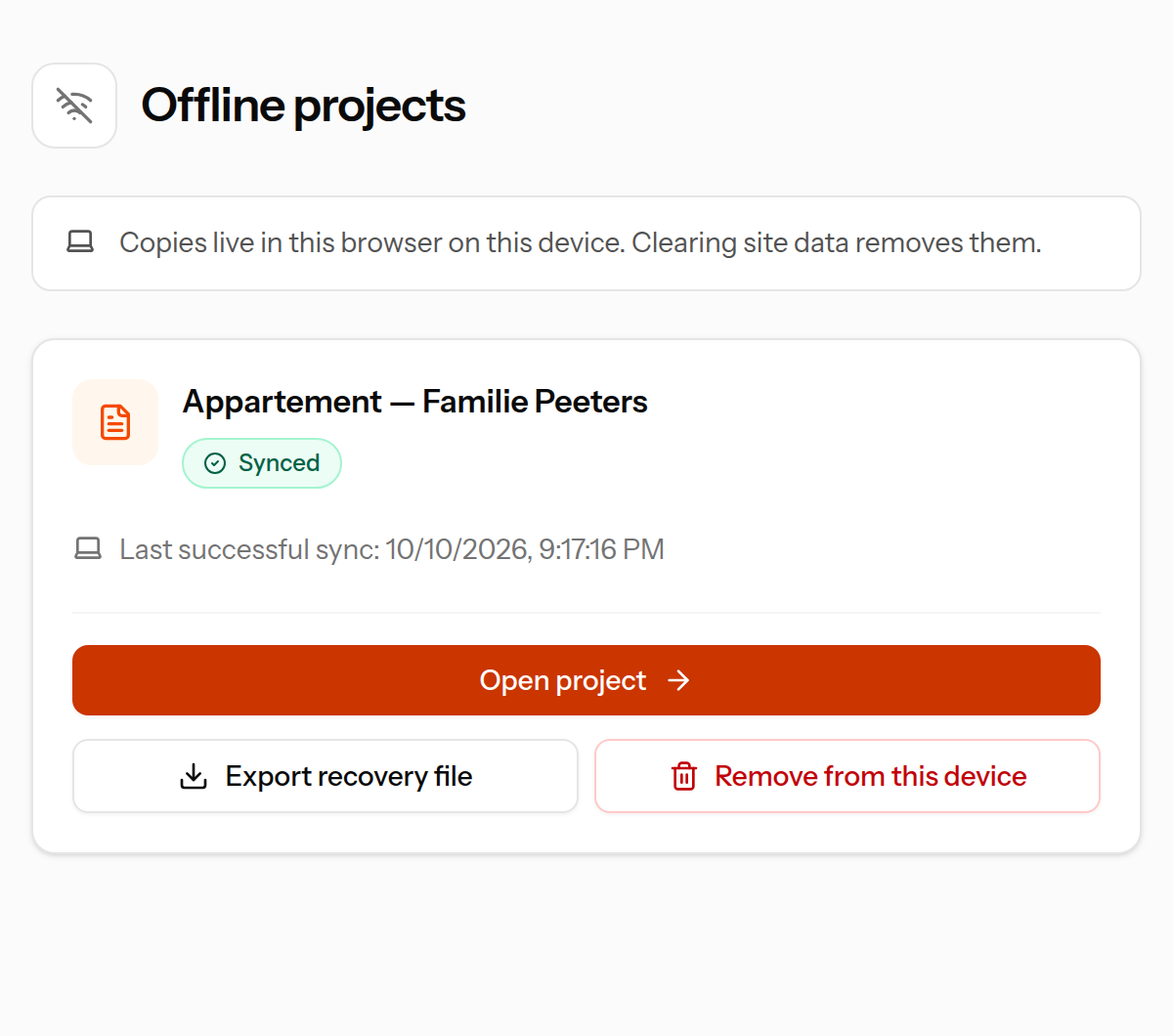
Open Plans and save that page as a bookmark (/plans). Open that page without internet and click Open project. Stay signed in and use the same browser and device.
No internet? Your prepared project is here. Click Open project.
3. Keep drawing and wait for saved
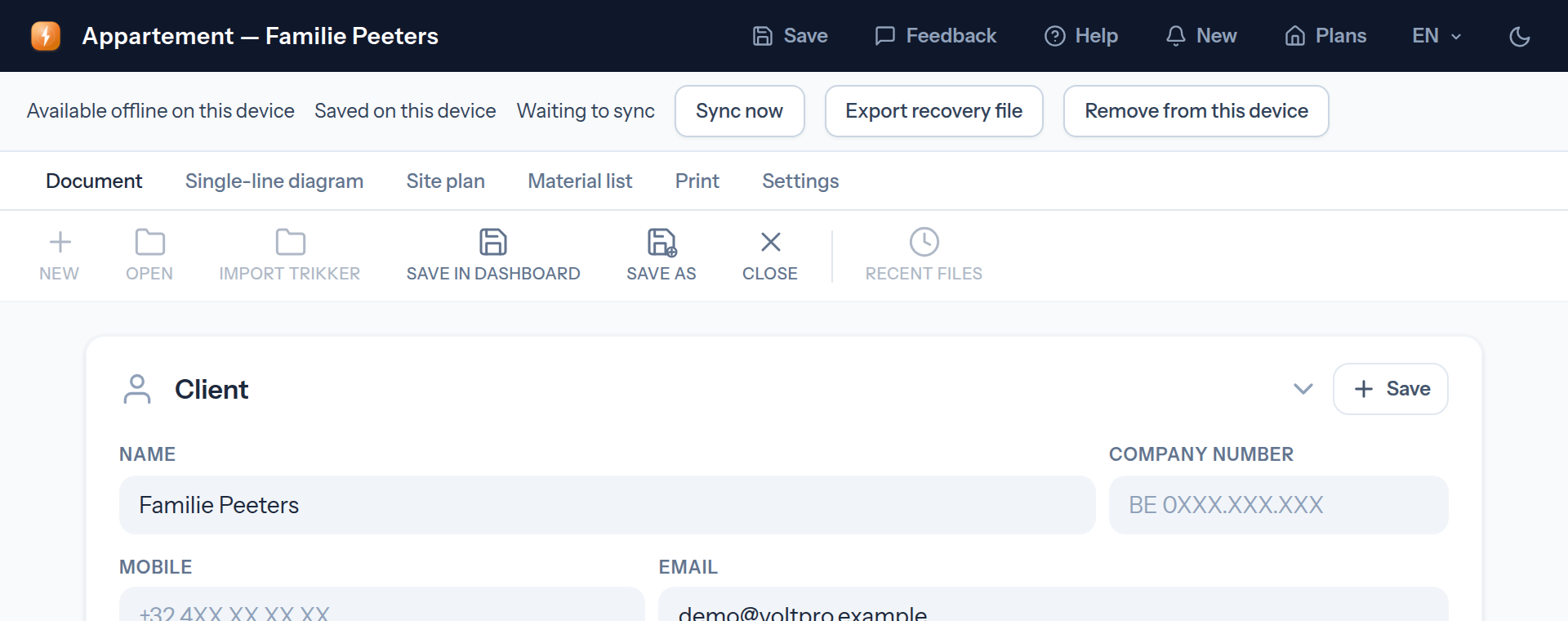
Work as usual. Voltuno saves automatically on this device. Wait for Saved on this device before closing. Waiting to sync means: your work still needs to reach your online account.
Saved on this device = safe in this browser. Waiting to sync = not online yet.
4. Back online? Keep Voltuno open
Your work uploads to your online account automatically. You can also click Sync now. The bar disappears once everything is saved online.
The offline bar has disappeared: your project is fully saved online again.Other buttons or a problem? Click here
Export recovery file saves an extra copy as an .ee file on your computer. Use it if local saving or syncing fails. Keep the tab open until you have a copy.
Remove from this device deletes only the local copy. Your online project stays. Sync or export your changes first.
Sign in to sync? Go online and sign in with the same account. Signing out locks your local projects.
Cloud version changed? Keep my changes as a separate project saves your work as a new project if your subscription has room. Use the cloud version replaces your local work after confirmation; export it first. Decide later keeps your work while you continue drawing.
Not prepared yet? Go online first. Team projects cannot be edited offline; stop an active sharing link before preparing too. Import Trikker files online, then prepare the result.
Do not clear site data: it removes local projects. Prepare again if you switch browsers or devices.
Ctrl + S (Cmd + S on Mac) also saves locally. A bookmark for your prepared project at /editor opens it directly.
9. Project & administrative details
In the Document tab you enter the administrative details of the project. These details appear on your printed documents and are required for the inspection file.
Client details and the installation address
Installer details
Meter number and connection characteristics
Date and type of the work (new build, renovation, extension)
Complete these details before you export, so your documents are immediately ready to send to the inspector.
10. Single-line diagram
A single-line diagram brings your entire electrical installation together on one clear sheet: every circuit, every protective device and all switchgear at a glance.
Adding components
Search for a component in the library on the left and drag it onto the canvas. Voltuno automatically places the correct AREI symbol based on the component you choose.
All AREI symbols are built in by default
Drag and drop, with no learning curve
Link components to the right circuit
Click a placed component to adjust its properties in the properties panel.
11. Site plan
The site plan shows the floor plan of the home with the placement of each device: where the sockets, switches and light points are physically located.
Draw walls and rooms to build up your floor plan
Place symbols in the correct room
Add dimensions for a correct scale
Link the symbols to the components from your single-line diagram
With the grid and snap function you place everything neatly aligned. Doors can be rotated and flipped so the swing direction is correct.
12. Circuits
Every circuit in your installation gets its own number. Per circuit you set the matching protection, cable cross-section and load.
Per circuit: breaker, residual-current device, cable cross-section and load
Circuits are numbered clearly and sequentially
Add a new circuit and Voltuno gives it the next number
Group circuits under the correct residual-current device
You quickly add a new circuit with the button on the canvas or with the shortcut (see the Shortcuts chapter).
13. Material list
The material list is built up automatically from your diagram. As you draw, Voltuno keeps track of which components you use and in what quantities.
A complete overview of all components used
Automatically updated whenever you add or remove something
A handy basis for your order or quote
Exportable together with your other documents
14. External influences
The AREI requires you to determine the external influences for each room — for example the presence of water, dust or mechanical risks. This helps determine which materials you may use and where.
Set the external influences per room or zone
The classification appears in a clear table
The table is part of the inspection file
Complete the table fully so your file is complete for the inspector.
15. Home automation
If you work with a home automation installation, you draw it in the same way. Voltuno supports home automation components with their own symbols and addresses.
Place home automation components just like ordinary components
Assign addresses to your home automation devices
The home automation chain is laid out clearly on the diagram
16. Printing & exporting
Once your diagram is ready, you export it to PDF or print it directly. Your documents are then ready to send to the inspector or to your client.
Export to PDF with one click
Print your single-line diagram, site plan and material list
All administrative details appear on the documents
The symbols stay AREI-compliant in print
Before exporting, check that the Document tab is fully completed.
17. Account & settings
On your account and settings page you manage your personal details and how the editor works.
Profile: change your name, email address and password
Appearance: switch between light and dark theme — your choice is kept
Language: choose between Dutch, French and English
Security: enable two-factor authentication
Subscription: view or change your package
18. Keyboard shortcuts
These shortcuts help you work faster in the editor. On a Mac, replace Ctrl with the Cmd key (⌘). You can change the shortcuts in the Settings tab.